

BookTracker
A stylish assistant for daily reading. Build a reading habit day by day and track your progress!
Time or pages
- Track minutes spent reading or pages read
- Quickly log reading sessions
- Undo incorrect entries
Progress and books
- Daily goal, statistics and charts
- A record of the day’s reading sessions
- Count the books you’ve finished
Reminders
- Reminder times that fit your schedule
- Choose what happens when you reach your goal
- Optional notification sound
Widget and ease of use
- A handy shortcut widget on your watch
- Touch-friendly interface
- Available in 21 languages
App screens



License
Your Premium license purchase is tied to your current app installation and includes full support and free license renewal (after reinstall or watch factory reset) for 12 months from the purchase date.
If you need to restore your license during this period or want to get help, contact us by email.
After 12 months, you can use your current installation indefinitely (including all future updates), but reinstalling or transferring the license to a new device will require purchasing a new license.
Supported languages
- en-US — American English
- zh-CN — Simplified Chinese
- zh-TW — Traditional Chinese
- fr-FR — French (France)
- de-DE — German (Germany)
- it-IT — Italian (Italy)
- ja-JP — Japanese (Japan)
- ko-KR — Korean (South Korea)
- pl-PL — Polish (Poland)
- pt-PT — European Portuguese
- es-ES — European Spanish
- pt-BR — Brazilian Portuguese
- ru-RU — Russian (Russia)
- uk-UA — Ukrainian (Ukraine)
- nb-NO — Norwegian Bokmål (Norway)
- sv-SE — Swedish (Sweden)
- da-DK — Danish (Denmark)
- fi-FI — Finnish (Finland)
- el-GR — Greek (Greece)
- cs-CZ — Czech (Czechia)
- sk-SK — Slovak (Slovakia)
Changelog
- Added editing of entries from the last 7 days.
- Added a choice of haptics or vibration for reminders.
- Shortened the trial to 3 days.
- Added a shortcut widget.
- Fixed the interface on lower-resolution watches.
- Significantly improved performance and made minor fixes and improvements.
- Aligned the version number with AquaTracker.
- Added Czech and Slovak.
- Fixed goal streak counting (limit 9,999).
- Increased the reminder limit from 8 to 10 and added one-click removal of all reminders or today’s entries.
- Improved the +/− and undo buttons and swipe responsiveness.
- Added settings for the congratulations message and notification sound, and a hidden message when attempting to exceed a limit.
- Improved the interface, translations and result calculations.
- Added Help and License menus and Premium purchase at any time.
- Restricted selected trial features and changed the trial to 5 days.
- Added a daily goal streak counter.
- Initial release.
FAQ
Questions: 56 of 56
Getting started
BookTracker lets you log reading minutes or pages on your watch. Add sessions yourself, set a daily goal and follow your progress. A separate counter tracks the number of books you finish each year. The app does not detect reading automatically, time your sessions or keep a catalogue of book titles.
Connect your watch to your phone and open Zepp. Select your watch under Devices or Profile, open its app store and search for BookTracker. Install it and open it from the app list on the watch. Availability depends on the watch model, operating system and store listings for the device. If you cannot find BookTracker, check for Zepp and watch updates, then contact support with your model. An Amazfit watch is not necessarily compatible. BookTracker is not available for Apple Watch or Wear OS.
On the home screen of AquaTracker or BookTracker, swipe down or tap the total and goal to open Settings. Swipe up for Statistics. Swipe left or tap the bell for Reminders. Tap “?” for help, including jacekkopiec.com/zepp, the support email address and a link to your licence. Use these gestures inside the app. Changes you make in Settings are saved immediately.
Daily entries, goals, history, statistics and reminders all work locally on the watch, even when you are offline. A phone with the Zepp app and an internet connection are needed to install or update the app, buy Premium and check the payment. Keep the watch connected to the phone while checking payment.
Button labels depend on your watch’s language setting and the translations available. The FAQ refers to the main controls by their English and Polish names, for example Settings (Ustawienia) and Check Payment (Sprawdź płatność). Layouts can vary by watch model and app version. If the instructions differ from what you see, check Zepp for an update or send a photo of the screen to support.
The app shows release notes after installation and the first time you open it after an update. Tap X or use the back gesture to dismiss them. They will appear again when the version changes.
Open “?” → Help. The version number comes from the package installed on your watch. The same number appears on the “What’s new” screen. When contacting support, give the version shown on the watch. The developer’s local version may be ahead of the store release.
The current AquaTracker and BookTracker projects require Zepp OS API 3.0 or later and specify round screens 416, 454, 466 or 480 pixels wide. The apps do not run on Apple Watch or Wear OS. These specifications do not guarantee store availability for a particular model. Check the Zepp store on your phone for your watch. If the app is missing, tell support the model and system version.
Trial, Stripe and Premium
Install the tracker and open it on your watch. The three-day trial begins automatically the first time you open it. You do not need a code, a card or a Stripe payment. Stripe is used only to buy Premium. If you open the QR code screen during the trial, use the back gesture to return to the app. Displaying or scanning the code does not make a purchase.
The trial lasts three days, or 72 hours, from the first launch. The clock keeps running even when you close the app. References to a seven-day trial concern older versions. The time remaining is shown under TRIAL on the home screen and under “?” → License. If the purchase screen appears as soon as you open the app, your trial may have started on an earlier launch.
During the trial you can log minutes or pages, change your goal, view statistics and set one daily reminder. Both tracking modes are available from the start. The two upper session shortcuts work throughout the trial. The first time you use either lower shortcut, it logs that session and then locks both lower shortcuts until Premium is activated. Premium unlocks all four session shortcuts, up to ten reminders and unlimited access to the shortcut card (widget). You can also turn off the goal-reached message and hide the yearly book counter on the home screen. You can try the widget until you have added a total of ten minutes or ten pages on the card.
The purchase screen opens when the trial expires. Premium is required to continue using the tracker, and reminders are switched off. Your progress history is retained, but the list of reminder times may be cleared. Once you activate Premium, check your reminders and add the times again if necessary. There is no automatic purchase or charge to your card. You buy Premium separately on your phone and confirm the payment yourself.
You can buy Premium at any time. From the home screen, select “?” → License → Unlock Premium. Tapping the trial countdown also opens the purchase screen. The purchase screen opens automatically after the trial. Once you have paid, tap Check payment to unlock Premium.
Buying on the phone and activating on the watch are two separate steps. 1. Open the purchase screen in the correct tracker on the watch you want to unlock. 2. Scan the displayed QR code with your phone’s camera. Check the app name, price and currency on the Stripe page, then confirm payment. 3. Make sure your watch is connected to your phone in Zepp. Open Zepp on the phone and leave it open. The phone needs internet access. 4. Return to the watch after paying, reopen the purchase screen and tap Check payment. 5. Wait a few seconds for the check to finish. A message and a short sequence of vibrations confirm activation. Keep your receipt. The QR code contains the ID of the current installation. Use the one on your own watch rather than a photo from another watch or an old link.
Paying on your phone does not automatically activate Premium on the watch. Check each of the following: 1. You paid using the QR code displayed by the correct app on the watch you want to unlock. 2. The watch is connected to the phone in Zepp. 3. Zepp is open on the phone. 4. The phone is online. 5. You returned to the purchase screen on the watch and tapped Check payment after paying. 6. You waited a few seconds for the check to finish. If Premium is still inactive, repeat the check two or three times at intervals of five to ten minutes. Payment confirmation can take time to synchronise. If the problem persists, email support@jacekkopiec.com with the app name, a photo of the watch’s purchase screen showing the ID, a screenshot of the receipt and the current watch message, such as “No network” or “Make a payment”. After verifying the purchase, I can help restore Premium and, if needed, supply a free recovery code for checkout. Do not buy it again to activate it. Keep the app installed while the problem is investigated, as reinstalling can change its ID.
“No network” means the app could not finish checking the payment. Usually the watch cannot reach the internet through the phone. A service error or a timeout can also cause this message. Open Zepp on the phone, check internet access and the watch connection, leave Zepp open, then tap Check payment again on the watch. “Make a payment” means no confirmed purchase was found for this installation ID. If you have paid, check that you bought the correct app through the QR code from this watch. Repeat the check two or three times at intervals of five to ten minutes. If the issue persists, send support a photo of the screen showing the ID, your payment confirmation and the current message. Neither message requires a second purchase.
Premium is a one-time purchase. Each tracker has its own licence. Buying one app does not unlock the others. The licence is linked to the current installation of that app. You can keep using that installation indefinitely, including after regular updates. Separate terms apply when restoring a licence after reinstalling, resetting or changing devices.
Your purchase includes twelve months of full support and free licence renewal after reinstalling the app or restoring the watch to factory settings, starting on the purchase date. Email support@jacekkopiec.com with your receipt and a photo of the purchase screen on the watch showing the current ID. After verifying the purchase, I can help restore Premium. If needed, I will supply a free recovery code for checkout and further activation instructions. You do not need to buy Premium again to report a problem. After twelve months you can keep using your current installation and its updates indefinitely. Reinstalling or transferring to a new device after that period requires a new licence. If you change watches in the first twelve months, contact support first to discuss whether a transfer is possible. Restoring Premium does not restore your entry history. Use the regular update process without uninstalling a working app.
Email support@jacekkopiec.com with a photo of the purchase screen on the watch showing the ID, your receipt and the current watch message. After verifying the purchase, I can help restore Premium. If needed, I will send a free recovery code to enter at checkout on the phone, together with instructions. I handle recovery requests individually. Payment alone does not restore the licence automatically. After following the instructions, return to the watch and tap Check payment, with Zepp open, the watch connected and the phone online. The licence includes twelve months of full support and free renewal after reinstallation or a watch reset, starting on the purchase date. Keep your receipt.
The Stripe page opened from the QR code in the app shows the current price, currency and available payment methods. Check them before confirming your purchase. The FAQ gives no fixed price because the offer and the payment methods shown at checkout can change.
BookTracker — reading and books
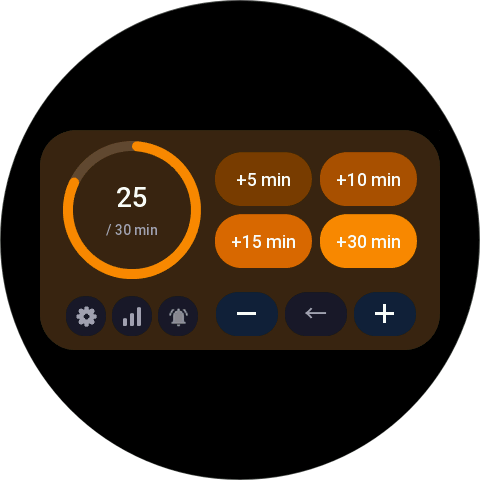
Enter reading manually in BookTracker. After reading, tap the home screen button for the number of minutes or pages you want to log. Each tap adds an entry to today’s total. Use +/− to adjust the amount or Undo to remove the last entry. The current version has no stopwatch or automatic reading detection. A session button adds its displayed amount immediately. It does not start a timer.
An entry belongs to the date on which you added it on the watch, even if the five-second buffer saves it after midnight. Its original mode, minutes or pages, is also preserved. An entry made after the date changes goes to the new day. This applies both in the app and on the shortcut card.
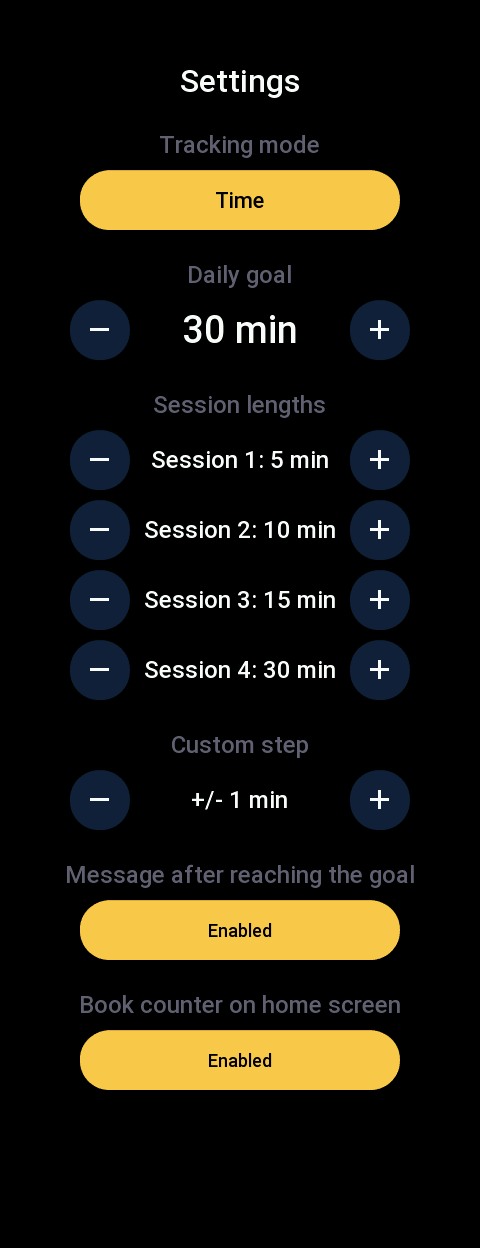
Open Settings → Tracking mode and choose Time or Pages. Both modes are available during the trial. Minutes and pages have separate entries, goals, session sizes and statistics. Switching modes does not convert minutes to pages or delete previous data. If you see zero after switching, return to the previous mode to see its totals.
In Settings, choose minutes or pages, then adjust the daily goal, the four session shortcuts and the +/− step for that mode. Changes are saved immediately. Each shortcut adds a set amount in one tap, such as 15 minutes or 20 pages. Set smaller values if you prefer short sessions. Minutes and pages can have different goals and shortcuts. The initial goal is 30 minutes or 20 pages. Default sessions are 5, 10, 15 and 30 minutes or 1, 5, 15 and 30 pages. The default adjustment step is 1. Settings values change in increments of 1.
Use +/− to adjust the amount. Stay on the same screen after adding a session. Adjustments made no more than five seconds apart modify that session. If a subtraction exceeds the session amount, the remainder is saved as a separate adjustment to the total. After a longer pause or after leaving the screen, the session is saved and the next adjustment creates a separate entry. Undo removes today’s latest entry. You can also delete a particular item under Today’s entries in Statistics. First make sure you are in the correct mode, minutes or pages.
The − button subtracts the configured step from the total for the current mode, down to zero. If the total is 250, the last session was 50 and the step is 100, tapping − leaves 150. The app first reduces the most recent unsaved session and saves any excess as a separate adjustment. Opposite operations, such as a separate −50 adjustment followed by a +50 session, are saved as separate entries even when their sum is zero. Undo removes the last entry saved.
The book counter is independent of minutes and pages. After finishing a book, open the counter from the home screen or open Book log below Edit history in Statistics. Tap + to add one. Tap − to correct a mistake. Reset clears the total for the current year. BookTracker does not infer when you finish a book from the page count or keep a catalogue of titles. The year follows the watch date, with a separate counter for each year.
Yes. In Premium, turn off the home screen book counter in Settings. Hiding it keeps your recorded number of books. The counter stays visible during the trial. You can log minutes and pages without using it.
During the trial, the first successful use of either lower button logs the session and then locks both lower shortcuts. The upper two keep working until the trial ends. Premium makes all four shortcuts available. The lower-button limit is part of the trial.
Widget and shortcut cards
The BookTracker widget is a shortcut card on the watch, with limited use during the trial and unlimited use in Premium. It displays your current total, goal and progress. Use the four session buttons, adjust with +/− or undo an entry. It also provides shortcuts to Settings, Statistics and Reminders. The card and app share the same data, so entries made on the card appear in BookTracker. Tap the summary to open the app. This is a watch shortcut card, separate from phone widgets and watch faces. The total is shown for the selected mode, minutes or pages.
Install BookTracker and open it once. In the watch’s shortcut card settings, add BookTracker to the visible cards. Supported models also let you manage cards in Zepp. Setting names and locations vary by model and system version. Look for shortcut cards rather than the watch face store. If the app is missing from the list, check for updates and confirm device compatibility.
The trial widget works until the total changes made on the card reach ten minutes or ten pages. Reaching either limit locks the whole card. The last entry is saved in full, even if it takes you over the limit. Before the card locks, corrections and Undo on the card reduce the amount used. Once locked, undoing an entry in the main app does not unlock it. Premium restores full access. Tap the locked card to open the purchase screen. The allowance covers the whole trial and does not reset daily. Only changes made on the widget count towards it.
First check your total and licence status in the main app. After buying Premium, tap Check payment there and wait for confirmation. Leave the shortcut card panel and open it again. The card reloads data and licence status when it resumes. Check whether the total is for the selected mode, minutes or pages. Contact support if the discrepancy persists. You do not need to uninstall the app to refresh the widget.
No. The lock on the lower home screen shortcuts and the widget allowance are separate trial limits. All four shortcuts on the card work until you use up its allowance. The whole card then locks.
Reminders, sound and screen
1. Open BookTracker and tap the bell or swipe left. 2. Switch reminders to Active. 3. Set the hours and minutes, then tap Add. Minutes change in five-minute increments. 4. Check that your time appears in the list. Reminders repeat daily at the times you set. The trial allows one time and Premium allows up to ten. They run at fixed times, independently of your last reading session.
To change a time, remove the old one with × and add the new one. Tapping anywhere on a saved time’s row also removes it. Switch reminders to Inactive to pause them and keep the list of times. A time can be added only once. Saved times appear in chronological order.
By default, BookTracker skips reminders once you have reached today’s goal. To keep receiving them, enable reminders after reaching the goal on the Reminders screen. BookTracker uses the goal for the selected mode, minutes or pages. This setting is separate from the congratulations message shown when you reach your goal.
The Sound on / Sound off switch on the reminders screen controls the system alarm sound. The current version has no choice of tunes or custom sound files. Turning sound off in the tracker leaves reminder vibrations enabled. Whether you hear the sound also depends on your watch’s capabilities and system settings, including volume and mute.
On the Reminders screen, select Haptic or Vibration. The default Haptic setting gives five 50 ms pulses. Vibration gives five 150 ms pulses using the watch’s system alarm pattern. Pulses start about 500 ms apart. Your selection is saved and works independently of the sound switch. How the pulses feel depends on the watch model and its settings.
It opens the BookTracker home screen, where you select a session and log the amount. Tapping Add entry alone does not add minutes or pages. To dismiss the reminder without logging anything, choose Close.
The reminder has Add entry and Close buttons. Vibration lasts about 2.2 seconds. Sound, if enabled, lasts up to about 2.5 seconds. The app lets the watch control the screen timeout. How long the display stays on depends on your watch and its settings. The alert itself does not record an entry.
Check the following: • Your trial is still running or Premium is active. • Reminders are Active and the time appears in the list. • The watch date and time are correct. • If you have already met today’s goal, reminders after reaching the goal are enabled. • The watch allows the app to use alarms and vibration, if it provides those settings. • Check sound, mute and Do Not Disturb settings. If today’s time has passed, the next reminder is due at that time tomorrow. Add a time a little way ahead to test it. If it still fails, contact support with the watch model, app version and reminder time.
Yes. In Premium, turn off the goal-reached message in Settings. The message stays on during the AquaTracker and BookTracker trials. The congratulations screen triggers three 50 ms pulses about 500 ms apart. Turning it off leaves your total and reminders intact. Set reminder times and choose whether reminders continue after reaching the goal on the Reminders screen.
History, statistics and data
On the home screen, Undo (the ← arrow) removes today’s last entry. Under Today’s entries in Statistics you can see the times and amounts. Tap × beside a particular entry to delete it. Clear all removes today’s entries in the selected mode, minutes or pages. History from earlier days is retained. Use it when you intend to clear the whole of today’s list.
Yes. Choose Edit history in Statistics to correct the total for any of the seven days shown on the chart. Editing uses the current mode, minutes or pages, and that mode’s adjustment step. Switch modes to edit the other mode’s separate history.
In Statistics, select Edit history below the chart. The screen opens on yesterday. Use the arrows under Date to select one of the seven completed days shown on the chart. Tap − or + to change the day’s total by the adjustment step set for the home screen buttons. Below the total you can see the current step and a note explaining where to change it in Settings. Each adjustment is saved immediately. The editor fits on one screen, and the arrow at either end of the date range becomes inactive. This changes the total for that day. Individual past entries are not edited. The chart, average and streaks are recalculated with the corrected total. Edit today’s entries separately. Dates before those shown on the chart cannot be changed here.
The chart covers the last seven completed days. You can see today’s total on the home screen and today’s entries or sessions in Statistics. When a new day starts, the previous day’s total goes into history. On your first day the chart may still be empty even after logging activity. The weekly average counts only days with a positive recorded total within that period. Days with a zero total do not lower it.
Yes. Reopen Statistics after changing your daily goal. The average’s colour and your current and best streaks will reflect the new goal. The average itself is calculated from completed days and stays the same when only the goal changes. Adding or removing an entry today can change a streak if it moves today’s total above or below the goal. The bars and average for the seven completed days stay the same until the day changes. In AquaTracker and BookTracker, correcting a past day updates the chart and average as well as any streak affected by crossing the goal. Each unit or mode uses its own applicable values and goal. Premium shows your current streak on the home screen. You can see your best streak in Statistics. Streaks are calculated in Statistics during the trial even though the home screen does not show them.
A streak counts consecutive days on which you reached your daily goal. The app shows your current and best streaks. If you have yet to reach today’s goal, it may still show the streak ending yesterday. Reaching your goal today extends it. Streaks are recalculated against your current goal. Raising or lowering it can therefore change your current streak and your record based on earlier totals. Minutes and pages have separate totals and statistics.
Each day has a separate total based on the watch date. The daily counter starts at zero each morning and the previous total is saved in history. If the day changes at the wrong time, check the watch date, time and time zone and its synchronisation with your phone.
The current app stores history locally on your watch. It does not send reading entries to Apple Health or provide a history dashboard on the phone, data export or synchronisation between watches. Connecting Zepp to Apple Health does not automatically sync this app’s data. The widget shares data with BookTracker on the same watch. It is not a cloud backup.
The trackers do not have their own cloud history backup or data import. Uninstalling the app or resetting the watch can delete local entries, settings and the installation ID. Restoring a Premium licence does not restore history. Before resetting the watch, make your own record of any totals you need and keep your receipt. Contact support for help with the licence.
After you remove an entry, the app recalculates today’s total by replaying the remaining operations in the order they were saved. Each step is capped between zero and the daily maximum. Undo works the same way in apps with that button. If you remove an earlier positive entry but leave a negative adjustment, the result stops at zero. Later additions are counted from there. Removing the adjustment itself does not add a value that was never logged. At the maximum, deleting a session preserves the correct total for all remaining sessions. An empty list normally gives zero. The exception is an older total saved without entry details, described in the next question.
An older version may have saved today’s total without a list of individual drinks or sessions. Updating preserves the actual total as the opening balance for that day without inventing entries or times. New entries are added to that balance. Deleting them preserves the old total, including after reopening the app, changing days or migrating to the new data format. Clearing the entire journal for today also resets the opening balance. Modes with separate data retain separate opening balances.
Help and contact
Email support@jacekkopiec.com with the tracker name, watch model, app and watch operating system versions, the steps you took and what happened. A photo or screenshot can help. For a Premium activation issue, include: • A photo of the purchase screen on the watch showing the ID. • A screenshot of the payment confirmation and, if available, the transaction ID. • The message currently shown on the watch, such as “No network” or “Make a payment”. For a feature suggestion, explain what you would like to do and how the app could help.
I develop these apps independently. This address is for help with my trackers. For help with watches, Zepp accounts, Zepp Plus services and promotions, straps, watch faces or other developers’ products, contact Amazfit, Zepp or the developer responsible.